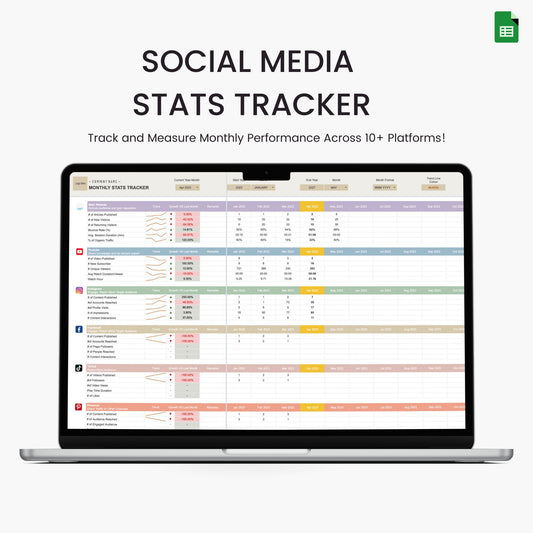
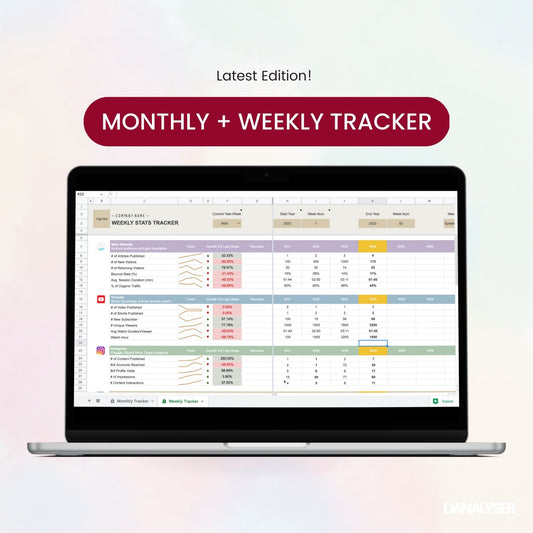
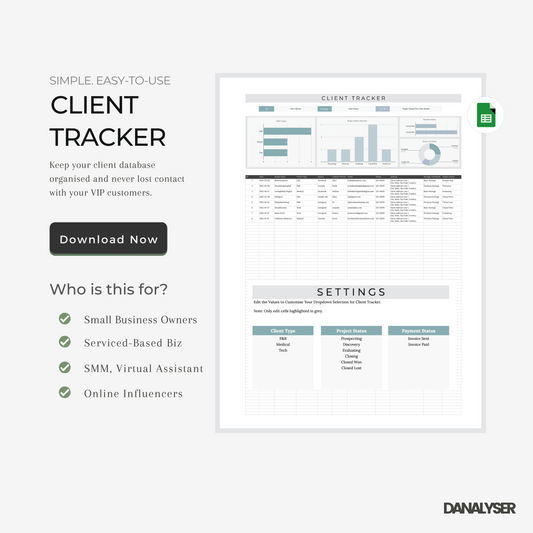
Adding a logo to your Google Sheets dashboard is a simple way to personalize your reports or showcase your brand. Whether you're sharing templates with clients or creating reports for your own business, a logo makes it more polished and professional.
In this quick tutorial, we’ll walk you through two easy methods to add a logo to your Google Sheets:
- Method 1: Upload Logo to Google Sheets from Local Computer
- Method 2: Insert logo using public image URL
- Bonus: How to add image as watermark
How to Insert Company Logo in Google Sheets
Method 1: Upload a Logo Image from Your Computer
✅ Best for: Logo images saved on your device (PNG, JPG, etc.)
We have a youtube video recorded for you, so you can follow step-by-step.
Steps:
- Click on the cell where you'd like the logo to appear (usually at the top left or in a header section).
- From the menu bar, go to:
Insert > Image > Image in cell (or “Image over cells” if you want it floating on top)
- A popup will appear — click Upload and select your logo file from your device.
- The logo will appear in the selected cell.
📝 Bonus Tip:
Use Image over cells if you want more flexibility in positioning your logo across multiple cells.
Method 2: Insert a Logo Using a Public Image URL
✅ Best for: Logos hosted online (e.g., from your website or a public image link)
Steps:
- Select a cell where you want to insert the logo image.
- Type the following formula: =IMAGE("https://your-image-link.com/logo.png").
- Copy-and-paste the image URL to replace the temporary value: "https://your-image-link.com/logo.png" in the formula.
You may refer to this guide below:
📍Where to Place Your Logo
Now that your logo is added, you might wonder — where should it go?
Here are some helpful placement ideas, especially if you're designing dashboards or templates for others:
Option #1: Top-left corner of your spreadsheets
This is the most common and effective spot for branding, where most people look first naturally.
Option #2: In the frozen left-panel / top-panel
Want your logo to stay visible while scrolling? Add the logo to a cell in the first row or column, then freeze it.
To freeze the row, go to View > Freeze. Then select the options to freeze one or multiple rows or columns.
Option #3: As a watermark in the middle of the sheet
For view-only shared dashboards, adding a semi-transparent logo as a watermark can deter unauthorized copying and assert authorship.
Instead of adding the image from the usual place, we use drawing feature so that we can add a layer of transparency to the image for the watermark effect. See below for the quick tutorial to add logo watermark.
Bonus Tutorial: How to Add Company Logo as Watermark

Steps to add image as watermark:
- Click on Insert > Drawing.
- In the drawing upload your watermark or logo.
- Add a new shape and layer it on top of the image. Set the shape colour to transparency at 50%.
- Click Save and Close.
- Lastly, position the drawing to the centre of the spreadsheets.
PS: Hey! Thanks for reading. How do you find our Google Sheets blog?
If you enjoy reading, please do support us by sharing our work with your friends and colleagues! Your support means alot! Thanks.