If you’re using one of my Google Sheets templates to manage your business finances, track expenses, or monitor sales performance, you’ll likely want your numbers to show up as currency — especially when dealing with money💰!

Here’s a simple step-by-step guide on how to format numbers as currency in Google Sheets.
Why Format Number as Currency?
When you format numbers as currency:
-
easier to read and interpret.
- Your report contains multiple currencies, and you need to differentiate them.
- It gives clarity to readers about the number they are reading. i.e. 100 can refer to 100 orders, 100 sales revenue in dollar or 100 items sold.)
Example Use Case
sales tracker template. You’ll probably have columns like:
-
Total Sales
-
Monthly Budget
-
Expenses
currency formatting.
![]()
![]()
![]() Tutorial: How to Format as Currency in Google Sheets
Tutorial: How to Format as Currency in Google Sheets
Follow these steps to apply currency formatting:
Step 1: Select the cells
Click and drag to select the cell, column, or row you want to format.
Step 2: Go to Format → Number → Currency
From the top menu, click:
Format → Number → Currency
Step 3: (Optional) Change to another currency
SGD, etc., follow these steps:
-
Select your cells again.
-
Format → Number → Custom currency (see screenshot below).
-
In the Custom Currencies window, choose the currency you want from the list.
-
Apply.
🌍 Bonus Tip: Set Your Default Locale
locale settings.
To fix that:
-
File → Settings
-
General tab, find “Locale”
-
Choose the country that matches your currency
-
Save and reload.
Once refreshed, you’ll notice the currency symbol in the toolbar has been switched based on the country selected.
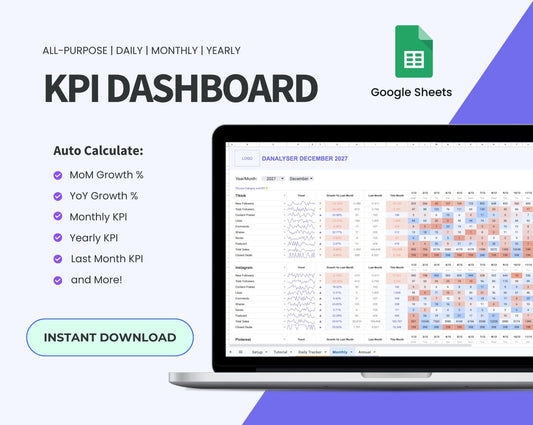
Want a plug-and-play dashboard that automatically tracks key business metrics and revenues? Try my Multipurpose KPI Tracker for Google Sheets — it includes pre-built formulas, trend analysis, and supports multiple currencies.