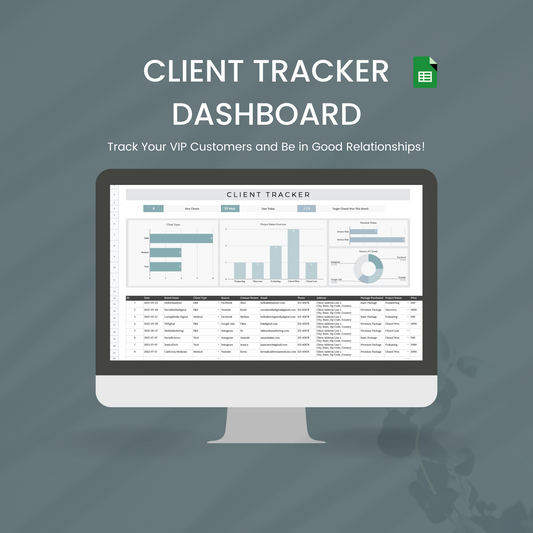
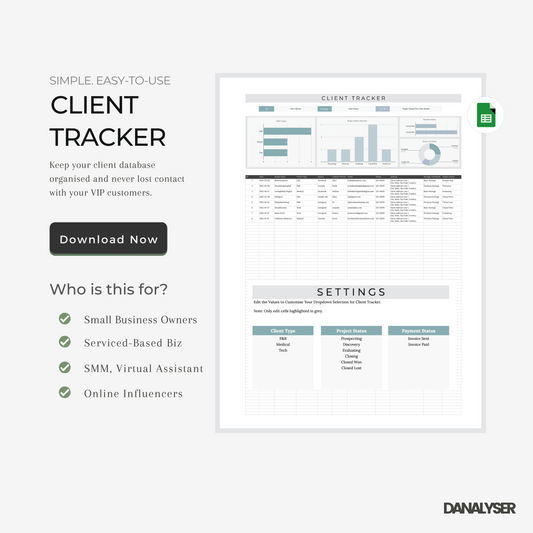
In this article, we'd cover how to make your own custom colour theme in Google Sheets easily, and why it matters.
Why Use Theme Colour?
Google Sheets has a built-in Theme feature that lets you customize colours for text, backgrounds, and accents in one place.

Simplified Theme Editing
Using a theme for template design makes editing much easier compared to manually picking colours for each element. When you change a colour in the theme palette, all elements that use that theme colour — text, cell backgrounds, and charts will update automatically.
For this reason, Pocodash templates always use a customized theme. We carefully define the colours in the theme so you can update the entire sheet’s colours with just one click, keeping the colour editing tasks effortless.

Brand Consistency
A well-defined theme doesn’t just make editing easier — it also keeps your design aligned with your brand.
When you follow a structured brand theme, your colours stay consistent across every part of the template. Instead of mixing random shades, each header, highlight, button, and chart follows the same visual direction. This creates a cohesive and professional look.
How to Apply or Customize a Theme
- Go to the top menu and click Format > Theme. This opens up a Theme panel on the right side of your screen.
- You can choose a Google pre-built theme from the list to apply new colour instantly.
- Alternatively, click Customise button (on the top right corner of the window) for a more customised look.
- Click on the colour dropdown, pick colour from the palette, or use the eye dropper to select a colour from your screen.

- The cells that use that theme colour will update immediately to reflect your selection.
- Once you're happy with the results, click "Done" to apply the theme.
For any colours that do not update automatically from the theme palette, manually reselect them using the paint bucket or text formatting tools.
Inspirations for more Colour Palette
As a Google Sheets Developer & Designer, I prefer to browse Pinterest for more ideas and inspirations. Few months back, I shared my 4 colour palette and many of google sheets users love it!
I'd share link for both in below for your reference: